iOS 27 is out: the settings to change first
iOS 27 is out for iPhone 11 and newer. Update to 27.0.1, then go through these settings.

Apple released iOS 27 on September 14. It runs on iPhone 11 and newer and on iPhone SE (2nd generation and later). On September 28, Apple released iOS 27.0.1 with bug fixes, including one for a touchscreen freeze when Notification Center and Control Center were opened at the same time.
If you haven't updated yet, go to Settings > General > Software Update. Connect to Wi-Fi and plug in your phone first. While you are there, turn on Automatic Updates so the next fix installs on its own.
Once you are on iOS 27, these are the settings worth checking.
Turn on Siri AI
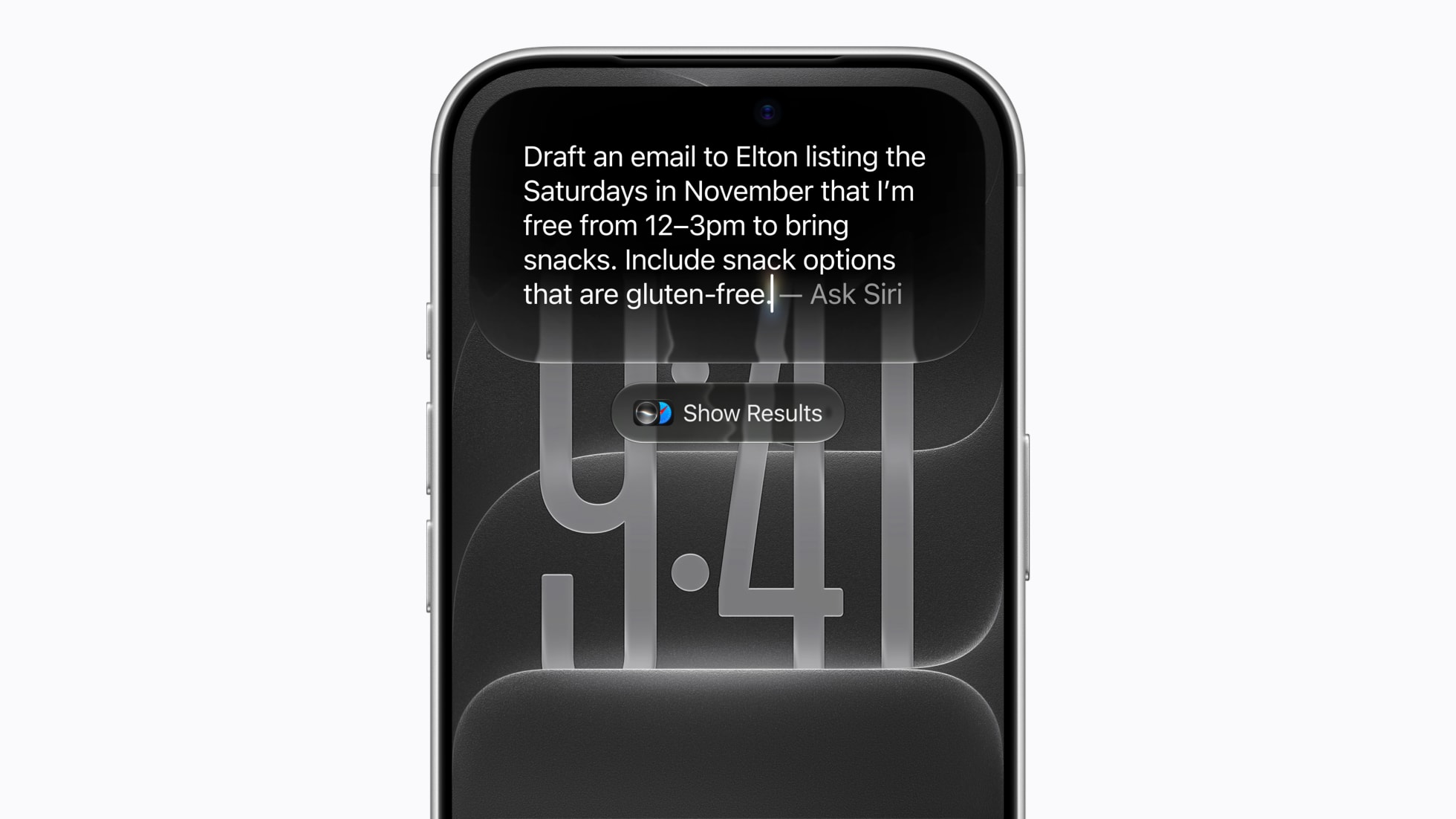
The biggest change in iOS 27 is the new Siri. It works on iPhone 15 Pro, iPhone 15 Pro Max and every iPhone 16 or newer. Go to Settings > Siri > Try Siri AI (Beta). It is in beta and English only for now, and Apple may put you on a waitlist first.
Tone down Liquid Glass
If the see-through look makes menus hard to read, go to Settings > Appearance > Liquid Glass. Moving the slider to the right adds more tint, which makes buttons and menus easier to read.
Turn on Impersonation Risk Detection
This is new in iOS 27. It looks for signs of a scam where someone pretends to be a company you trust and pushes you to send money or change your account. Go to Settings > Privacy & Security > Impersonation Risk Detection and turn on Share with App Developers. Your iPhone does the checking on the device, and apps that support it only get a risk level.
Screen calls from unknown numbers
Go to Settings > Apps > Phone > Screen Unknown Callers and choose Ask Reason for Calling. Before your iPhone rings, it asks callers who aren't in your contacts for their name and why they are calling. The rest of the spam tools are in our guide to stopping spam calls.
Set a charging limit
On iPhone 15 and newer, go to Settings > Battery > Charging and pick a limit between 80% and 100%. Stopping at 80% is easier on the battery over time. On iPhone 14 and older, turn on Optimized Battery Charging under Settings > Battery > Battery Health & Charging.
Check 5G and Wi-Fi Calling
Go to Settings > Cellular > Cellular Data Options > Voice & Data and pick 5G Auto. Your iPhone uses 5G when it helps and switches to LTE when that saves battery.
Then go to Settings > Cellular > Wi-Fi Calling and turn it on. It lets you call and text over Wi-Fi when your signal is weak, and it is how you make calls on Vetra when you travel abroad. Your iPhone asks for an emergency address the first time.
Getting a new iPhone?
If you are picking up an iPhone Duo this fall, here is how it works on Vetra. Questions about your iPhone on Vetra? Call us 24/7 at (833) 888-3872.